دليل: كيف تستخدم WhatsApp على Android
آخر تحديث: October 13, 2016
(تحذير) حالياً لا ننصح باستخدام تطبيق واتساب للاتصالات الآمنة. اقرأ التفسير الكامل لذلك هنا.
ما يثير مخاوفنا على وجه الخصوص هو التصريح الذي قام به تطبيق واتسآب في أغسطس/ أب 2016 عن سياسة الخصوصية الجديدة التي تسمح بتشارك المعلومات مع شركته الأم فيسبوك. يسمح ذلك لفيسبوك بالوصول إلى العديد من المعلومات الخاصة بمستخدمي واتسآب بما في ذلك أرقام الهواتف وبيانات الاستخدام.
وقد سُمِح لمستخدمي واتسآب عند الإعلان عن سياسة الخصوصية الجديدة بفترة انتقالية يتمكنون أثناءها من تغيير إعداداتهم لمنع فيسبوك من اقتراح أصدقاء أو عرض إعلانات بناءً على البينات التي يتم الحصول عليها من واتسآب. إلا أن أصحاب الحسابات الجديدة لا يملكون هذا الخيار الذي يسمح برفض هذا الاستخدام الموسع لبياناتهم. عوضاً عن ذلك فإن الخيار الوحيد المتوفر للمستخدمين الجدد هو القرار باستخدام واتسآب بسياسة خصوصيته الجديدة ومشاركة المعلومات المترتبة عليها من عدمه. ومع أن الشركة تأكد للمستخدمين بأنها لن تشارك بياناتهم بشكل مباشر مع المعلنين إلا أن سياسة الخصوصية الجديدة ما زالت تشكل تهديداً واضحاً لسيطرة المستخدمين على الطريقة التي يتم فيها استخدام ومشاركة بياناتهم.
بالإضافة لذلك فإننا قلقون من تطبيق واتسآب على الإنترنت. إذ يقدم واتسآب للمستخدمين واجهة آمنة للتصفح عبر بروتوكول نقل النصوص المتشعبة الآمن HTTPS لإرسال واستقبال الرسائل، إلا أنه، شأن كافة المواقع الالكترونية، فإن الموارد اللازمة لتحميل التطبيق يتم تقديمها في كل مرة تقوم فيها بزيارة ذلك الموقع، وبالتالي حتى وإن كان المتصفح يدعم نظام التشفير crypto فإن التطبيق المتسخدم على الإنترنت قابل للتعديل بسهولة ليقدم نسخة خبيثة من التطبيق عند أي تحميل للصفحة، تكون قادرة على تقديم كل رسائلك إلى طرف ثالث.
ما زال واتسآب يقدم تشفيراً من الطرف إلى الطرف والذي يضمن بأن يتم تحويل الرسالة إلى رسالة سرية من قبل مرسلها الأصلي وفك تشفيرها من قبل مستقبِلِها النهائي حصراً. إننا لا نجادل الطريقة التي يتم فيها هذا التشفير، ففي الحقيقة فإننا نأمل أن يصبح بروتوكول التشفير الذي يستخدمه واتسآب، وهو بروتوكول سجنال، واسع الانتشار في المستقبل، وإنما نحن قلقون من الأمن والخصوصية لدى واتسآب رغم جودة بوتوكول سجنال.
(تحذير): إذا كنت ما زلت ترغب باستخدام واتسآب راجع دليلنا التعليمي أدناه وتأكد من إطفاء النسخ الاحتياطي على السحابة وتشغيل إشعارات تغيير البصمة (انظر فقرة "إعدادات الأمن الإضافية")
موقع التنزيل: التنزيل: يمكن تنزيل التطبيق من متجر غوغل للتطبيقات Google Play Store
متطلبات النظام: أندرويد 2.1 أو أحدث. الحواسب اللوحية (تابلت) غير مدعومة.
الإصدار المستخدم في هذا الدليل: 2.16.13
الرخصة: خاصة
قراءات أخرى:
- https://blog.whatsapp.com/10000618/end-to-end-encryption
- https://www.whatsapp.com/security/WhatsApp-Security-Whitepaper.pdf
- https://medium.com/@thegrugq/operational-whatsapp-on-ios-ce9a4231a034
المستوى: مبتدئ – متوسط
الوقت المطلوب: 15-20 دقيقة
واتسآب تطبيق يسمح لمستخدمي الأجهزة المحمولة التواصل باستخدام التشفير من الطرف إلى الطرف، حيث يمكن للمستخدمين عبره الدردشة والاتصال هاتفياً وإرسال الملفات وإجراء المحادثات الجماعية بشكل آمن. وعلى الرغم من أنه يستخدم أرقام الهاتف لجهات الاتصال فإن المكالمات والرسائل تستخدم اتصال البيانات الخاص بك؛ وبالتالي يتوجب توفر اتصال بالإنترنت لطرفي المحادثة على أجهزتهم المحمولة. ولهذا السبب لا يترتب على المستخدمين رسوم رسائل نصية قصيرة SMS أو MMS.

واتسآب مملوك من قبل فيسبوك، والتطبيق بحد ذاته مغلق المصدر، مما يعني أنه يصعب على الخبراء الخارجيين التحقق من تطبيق الشركة للتشفير بشكل آمن. وعلى الرغم من ذلك، فإن الأساليب التي يستخدمها واتسآب لإرسال الرسائل هي أساليب معروفة وتعتبر آمنة.
إعداد واتسآب على هواتف أندرويد
الخطوة 1: تنزيل وتثبيت واتسآب
على متجر بلاي Google Play، قم بالبحث عن "WhatsApp" واختيار تطبيق WhatsApp Messenger من قبل WhatsApp Inc
بعد الضغط على "تثبيت"، قد تظهر قائمة بوظائف أندرويد التي يحتاج واتسآب الوصول إليها للعمل بشكل صحيح. يرجى الضغط على "قبول".
بعد انتهاء التنزيل، قم بالضغط على "فتح" لإطلاق التطبيق.
الخطوة 2: التسجيل وتأكيد رقم الهاتف
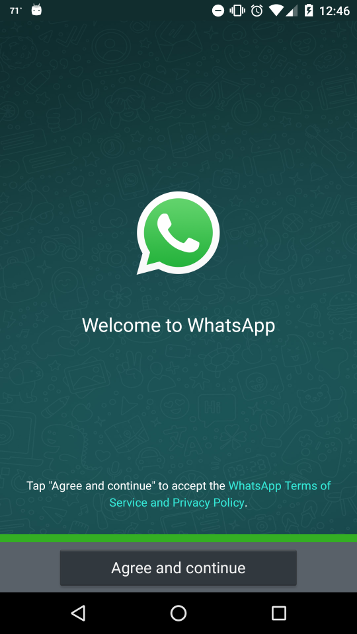
يتوجب عليك أولاً قبول أحكام وشروط واتسآب وسياسة الخصوصية.
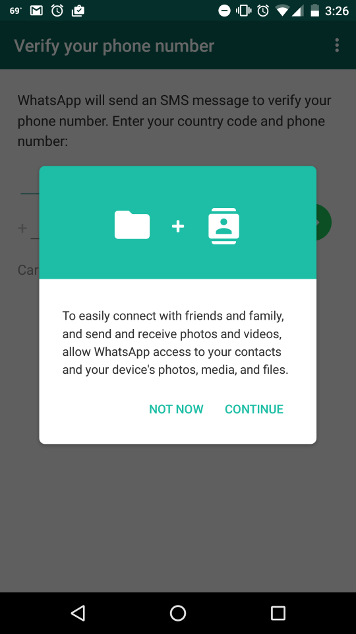
سيطلب واتسآب الوصول إلى جهات الاتصال لديك. إن سمحت لواتسآب بذلك سيحصل التطبيق على قائمة كاملة بأرقام هواتف جهات الاتصال لديك. إن لم تمنحه حق الوصول ذاك، يمكنك يدوياً إضافة كل من جهات الاتصال لديك للمحادثة النصية عبر التطبيق، إلا أنه لا يمكنك إجراء اتصال هاتفي بواسطة التطبيق دون منحه حق الوصول إلى جهات الاتصال على هاتفك. إن أردت إرسال صور أو فيديوهات أو ملفات عبر التطبيق سيطلب واتسآب الوصول إلى تلك الملفات أيضاً.
اضغط على "متابعة" ثم "سماح" للكل إذا أردت منح تلك الصلاحيات.
ستظهر شاشة كالتالي:
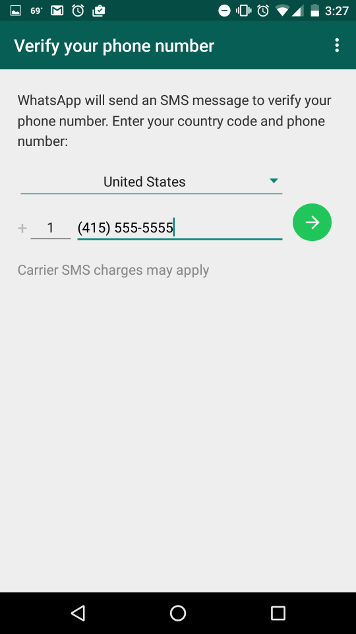
أدخل رقم هاتفك واضغط على السهم الأخضر. ستظهر نافذة للتأكيد:
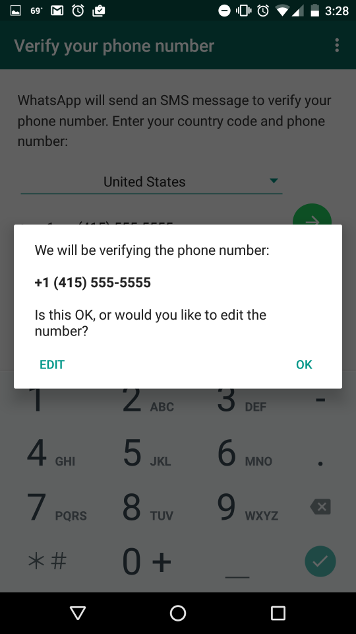
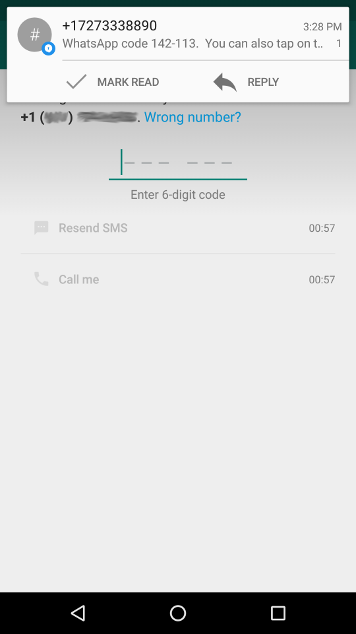
اضغط على "موافق". لتأكيد رقمك، سيجري إرسال رسالة نصية قصيرة SMS تحوي رمزاً يتكون من ستة أرقام. قد تظهر في تلك اللحظة نافذة تفيد بأن واتسآب يطلب الوصول إلى الرسائل النصية الخاصة بك. إذا ضغطت على "سماح" فسيميز واتسآب تلقائياً أن الرمز قد وصلك ويقوم بإكمال عملية التسجيل. إذا ضغطت على "رفض"، فستحتاج لمراجعة تطبيق الرسائل الخاص بك يدوياً للحصول على الرمز وإدخاله في النافذة التالية:
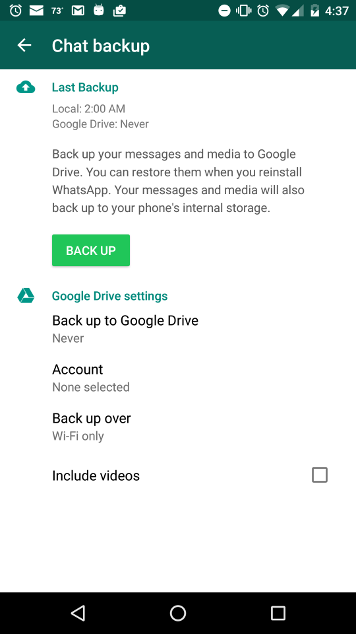
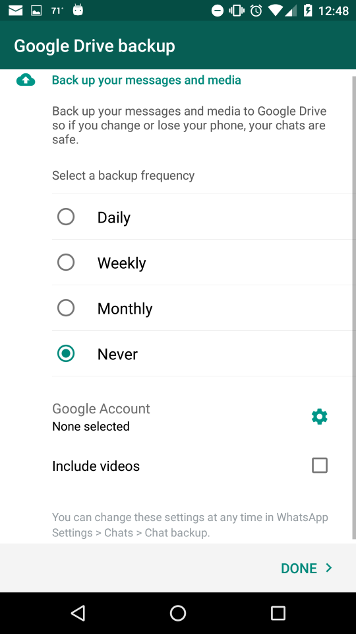
في الخطوات التالية، سيجري سؤالك عن رغبتك بنسخ الرسائل احتياطياً إلى Google Drive. لضمان عدم إرسال نسخ احتياطية غير مشفرة إلى Google، يرجى اختيار "أبداً" ومن ثم الضغط على "تم".
استخدام واتسآب
لاستخدام واتسآب، يتوجب على الشخص الذي تراسله أو تهاتفه تثبيت واتسآب أيضاً.
عند بدء محادثة مشفرة جديدة، سيظهر إشعار يفيد بما يلي: "الرسائل المرسلة في هذه المحادثة والمكالمات مشفرة باستخدام التشفير من الطرف إلى الطرف. يرجى الضغط لمزيد من المعلومات". يمكنك الآن التحقق من هوية الشخص الذي تحادثه، لضمان أن مفتاح التشفير الخاص به لم يتم العبث به أو استبداله بمفتاح شخص آخر عند تنزيل التطبيق للمفتاح (عملية تدعى التحقق من المفاتيح). تجري عملية التحقق بحضور الشخص الآخر وجهاً لوجه. يمكنك الضغط على الإشعار[1]، أو عرض معلومات جهة الاتصال بالضغط على زر القائمة في الأعلى (النقاط الأفقية الثلاث)[2]، ومن ثم الضغط على "عرض جهة الاتصال"[3]، ثم الضغط على زر القفل الأخضر في الشاشة التالية[4]:
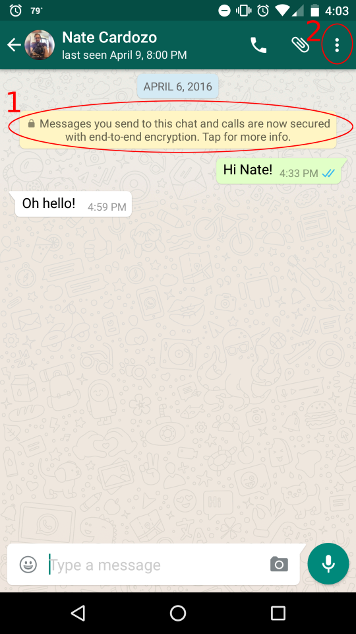
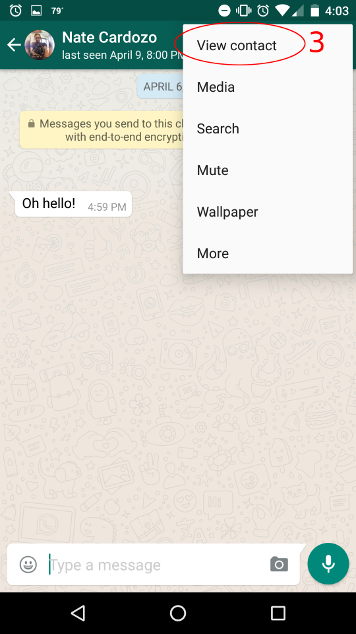
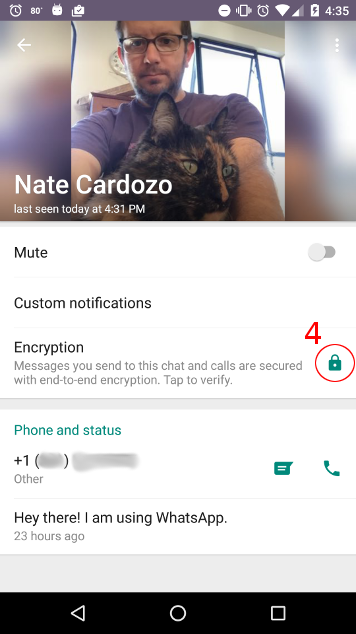
اطلب من الشخص الآخر اتباع نفس العملية على هاتفه. ستظهر الشاشة التالية بعنوان "التحقق من رمز الأمان":
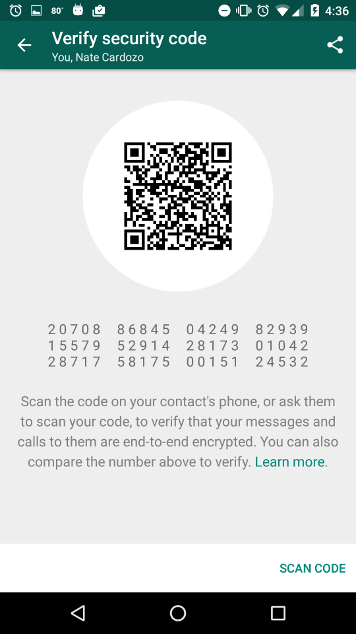
سيظهر رمز مكون من 60 رقماً. يمكنك التحقق إما عبر قراءة الأرقام بنفسك والتأكد من تطابقها مع أرقام الشخص الآخر، أو عبر قيام الشخص الآخر بمسح رمز QR الظاهر على الشاشة.
هناك أسلوب آخر يمكنك استخدامه وهو التقاط صورة للشاشة تحوي الأرقام ومشاركتها عبر طريقة آمنة أخرى.
عند اكتمال هذه العملية تضمن أن الاتصالات المشفرة مع جهة الاتصال تلك لا يمكن الوصول إليها من قبل جهات أخرى. وذلك ينطبق على الرسائل النصية ضمن واتسآب بالإضافة إلى المكالمات الصوتية ضمن التطبيق.
إعدادات أمان إضافية
عرض إشعارات الأمان
كما ذكرنا أعلاه، يفضل أن تبقى على إطلاع إذا ما تغير مفتاح التشفير الخاص بإحدى جهات الاتصال الخاصة بك.
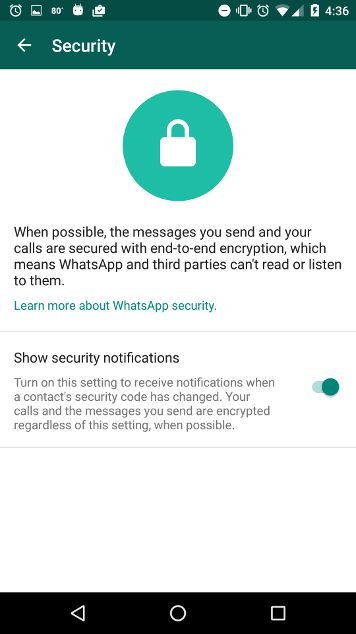
عادة، تغير مفتاح لا يدعو للقلق: هذا يحصل مراراً إما بسبب إعادة تثبيت التطبيق أو تغيير الهاتف. ولكن، هناك احتمال تغير المفتاح بسبب تطبيق خبيث من طرف خارجي يقوم بهجوم "الرجل-في-الوسط". لهذا السبب، يستحسن التحقق مجدداً (كما شرحنا سابقاً) عند تغير مفتاح أحد معارفك. افتراضياً، لا يعرض واتسآب تنبيهاً عند تغير مفاتيح جهات الاتصال. لتفعيل ذلك، يجب الانتقال إلى الإعدادات > الحساب > الأمان وتفعيل خيار "عرض إشعارات الأمان":
النسخ الاحتياطي إلى Google Drive
كما ورد أعلاه، يتوجب عليك التأكد من عدم إرسال نسخ احتياطية غير مشفرة إلى Google. انتقل إلى الإعدادات > المحادثات > النسخ الاحتياطي للمحادثات لضمان إيقاف النسخ الاحتياطي إلى السحابة. اختر "مطلقاً" تحت خيار "النسخ الاحتياطي إلى Google Drive".